
Docs
Getting started
Create a workspace, take the guided tour, and get your first app into AppBoard in about ten minutes.
AppBoard brings App Store Connect and Google Play Console into one panel so you can edit metadata, manage screenshots, publish changes, and mine reviews without switching consoles. This page takes you from a fresh account to your first app in about a minute - and to a connected store whenever you want one-click publishing.
Sign in
AppBoard uses passwordless sign-in. Enter your email address and we send a one-time code; paste it back to open your workspace. There are no passwords to store or rotate.
Want to look around before connecting a real account? Open the live demo - a fully populated workspace with sample apps, listings, and reviews, no signup required.
Create your workspace
Every account starts with a workspace. A workspace is the container for your apps, store connections, settings, and encrypted credentials - and it is the boundary AppBoard uses to keep data isolated. You can create more workspaces later for separate teams or clients.
Add your first app
Paste a link to your app's App Store or Google Play page. AppBoard imports the listing in every language it ships, the screenshots at full size, the store rating and the reviews - no API credentials, no console. Not published yet? Choose "Something new" and start from a blank listing.
From there the panel walks you through the flow: review the text the store serves, run the audit (listing score, the keywords you can win, what is wrong and what is good), accept or reject the proposed text fixes as diffs, open your screenshots in the editor, and publish.
Connect a store (optional)
Without a store connection you publish by copying the finished text into the console and pressing "I pasted it into the store" - AppBoard records the change in History and on the rank chart. Connect the store API when you want the rest done for you: one-click publishing to both stores, screenshot upload and review replies from the panel.
- Connect App Store Connect - with an App Store Connect API key.
- Connect Google Play Console - with a service account JSON.
Store credentials are encrypted at rest; you can additionally lock them behind a passphrase-protected vaultthat AppBoard's servers cannot open.
Heads up: resetting the vault permanently wipes every stored credential - there is no recovery code. Save your passphrase in a password manager before you continue.
Explore the dashboard
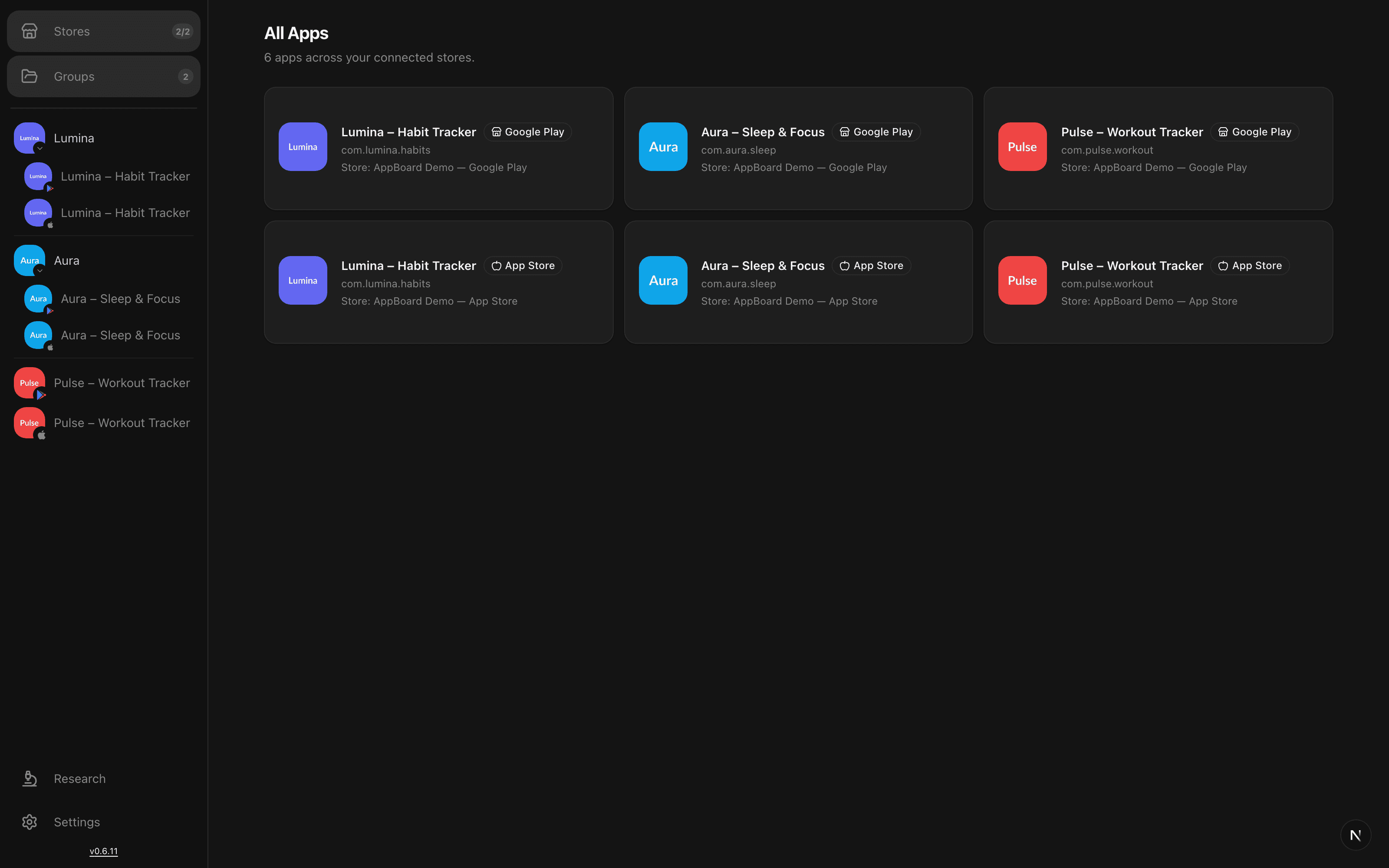
Every app you add appears on the workspace dashboard with its platform, connection (link or API), version and pending-change count. Open any app to reach its listings, screenshots, history, reviews, and publish flow.
What to do next
- Open the app's Fixes screen and accept the text proposals the audit made, or edit the listing yourself with the store limits shown live.
- Publish your changes - nothing reaches a store until you push it.
- Run research on a competitor to see keyword rankings and review complaints.