
Docs
Screenshots & graphics
Manage screenshots per device and language, meet each store's size requirements, and use the built-in editor.
Store screenshots are organized by device type and language, and each store is strict about exact pixel dimensions. AppBoard shows the requirements inline and includes an editor that exports at the right size.
Device types and languages
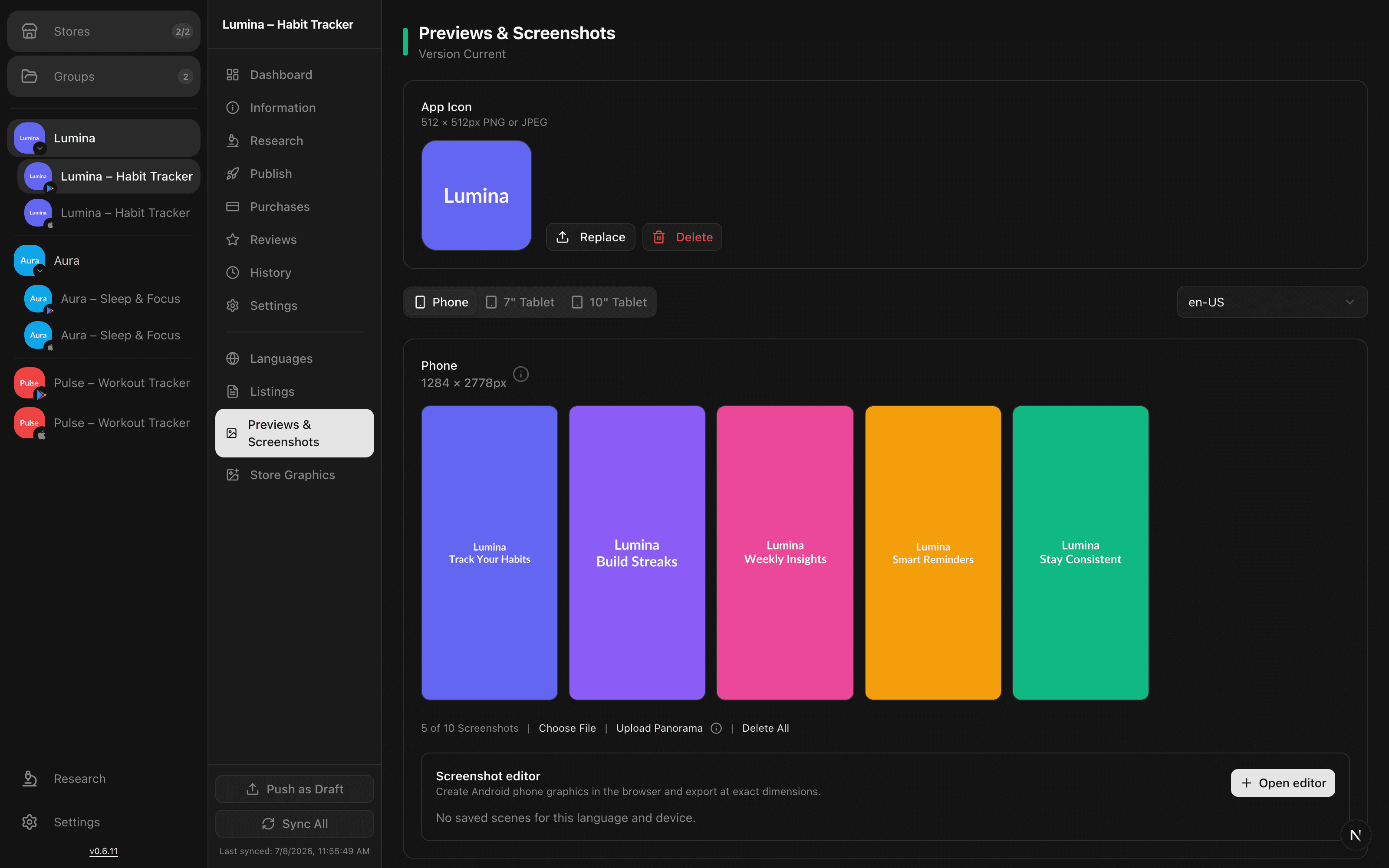
Screenshots are grouped per device and per language. On Google Play that means phone plus 7-inch and 10-inch tablet sets; on the App Store it means the iPhone and iPad display sizes Apple requires, such as the 6.7- inch iPhone. Switch language to manage localized screenshot sets independently.
Size requirements
Each slot shows the exact pixel dimensions it expects. A few fixed graphics you'll come across:
| Asset | Dimensions |
|---|---|
| App icon | 512 × 512 |
| Google Play feature graphic | 1024 × 500 |
| Device screenshots | Per-device pixel sizes shown in each slot |
The built-in editor
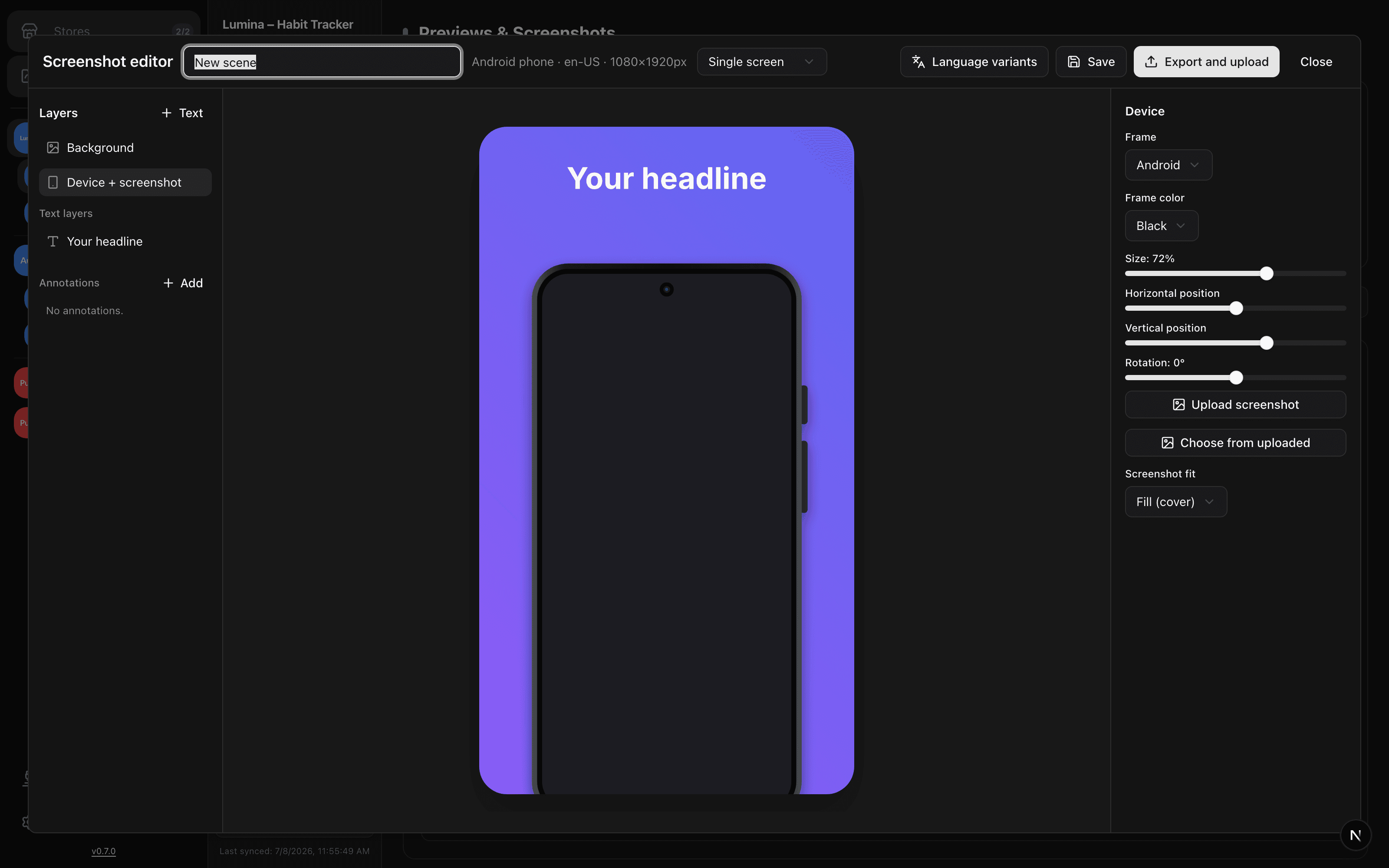
The screenshot editor composes full store graphics in the browser: pick a background (solid or gradient), drop your app screenshot into a device frame - iPhone or Android - position and rotate it, and add headline text on top. Scenes are saved per language and device, and export happens at the exact canonical dimensions for the selected device type, so the store won't bounce your upload for a size mismatch.
Language variants
A scene isn't tied to one locale. Use language variants to regenerate the same composition for every language you ship - same layout, translated headline - without redesigning anything.
Panorama splitting
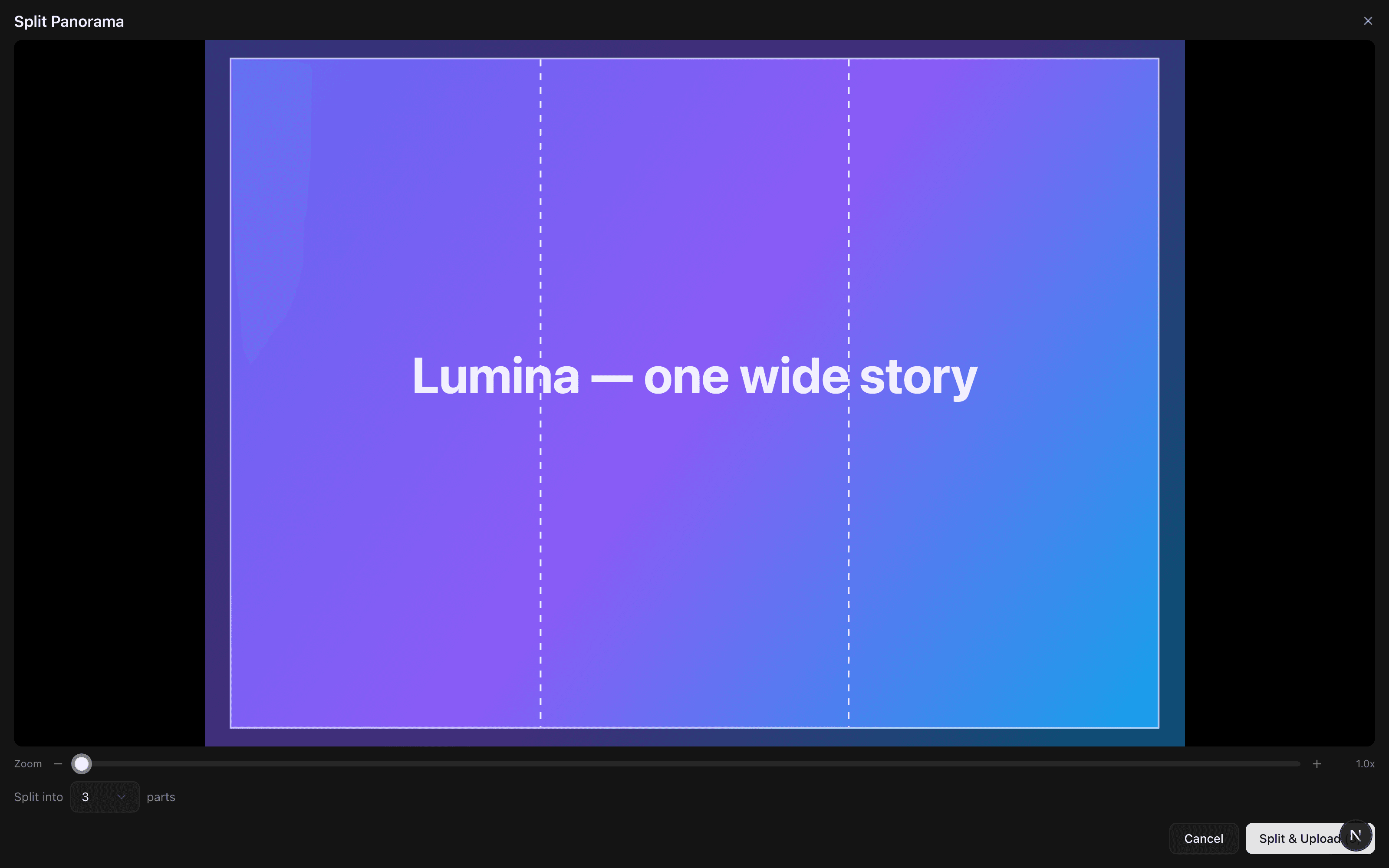
For the panoramic listing effect, upload one wide image and AppBoard slices it vertically into 2-10 equal parts, uploading each part as a consecutive screenshot. Frame the crop and zoom first, pick the number of parts, and the split preview shows exactly where the cuts land.
Pixel-perfect crop
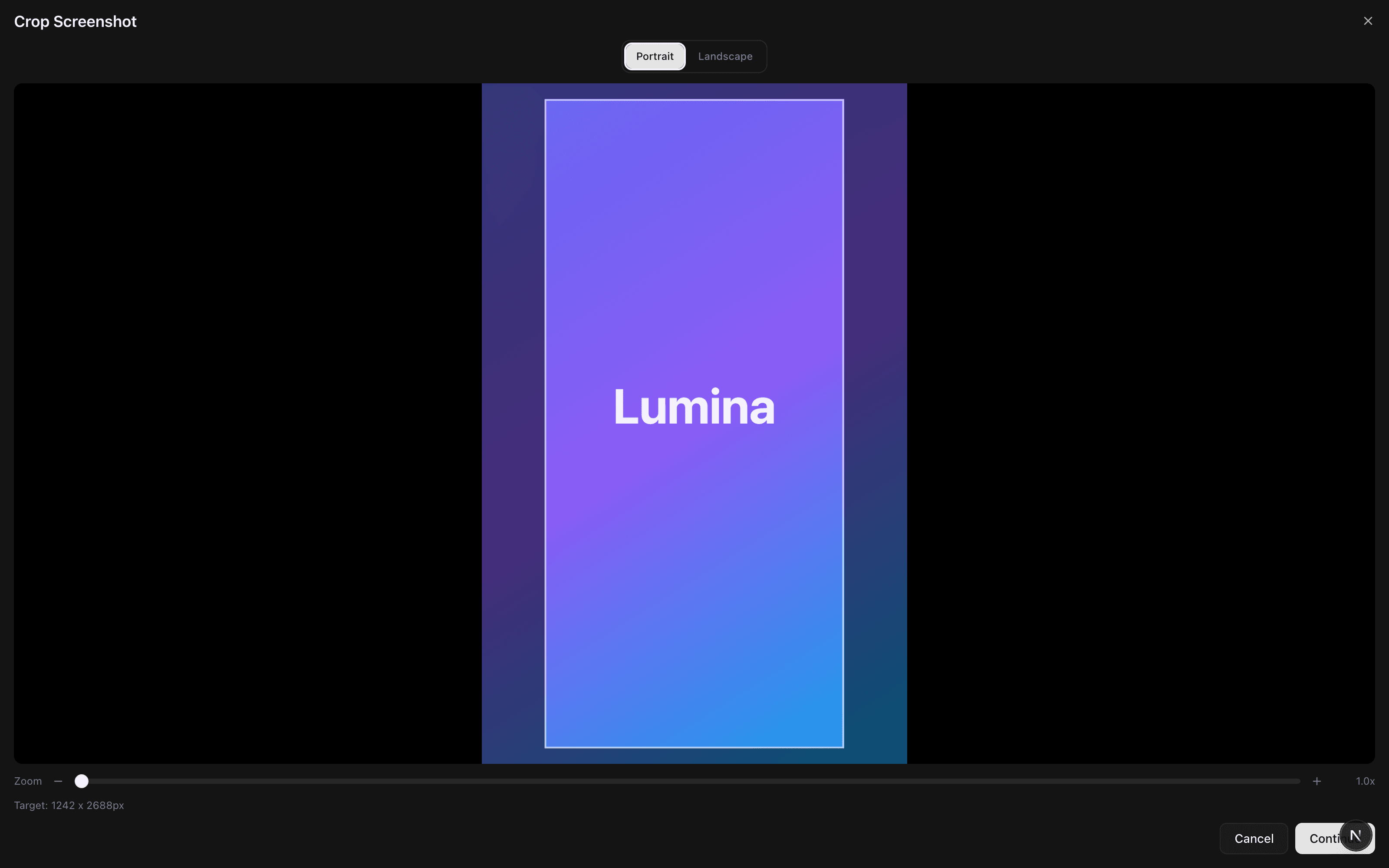
Upload an image that doesn't match the slot and the crop tool opens automatically, locked to the target device's aspect ratio in portrait or landscape. Zoom and position, and the export lands at the exact pixel target - for example 1242 × 2688 for a 6.5-inch iPhone - across every preset from the 3.5-inch iPhone to the 12.9-inch iPad Pro and Android tablets.
Heads up:stores reject screenshot sets that don't match the required dimensions exactly. Use the shown size for each slot, or export from the editor or crop tool - both already target the exact pixels.
Publishing screenshots
Screenshots follow the same draft-then-publish flow as text. Prepare your sets per device and language, then push them from the publish pagewhen they're ready.